
You sign in to the partner portal with your Wandura account, either through Google or with an email address and password. Access is tied to the email address your organisation added, so always sign in with that address. This page covers signing in, accepting an invitation, switching between organisations and signing out.
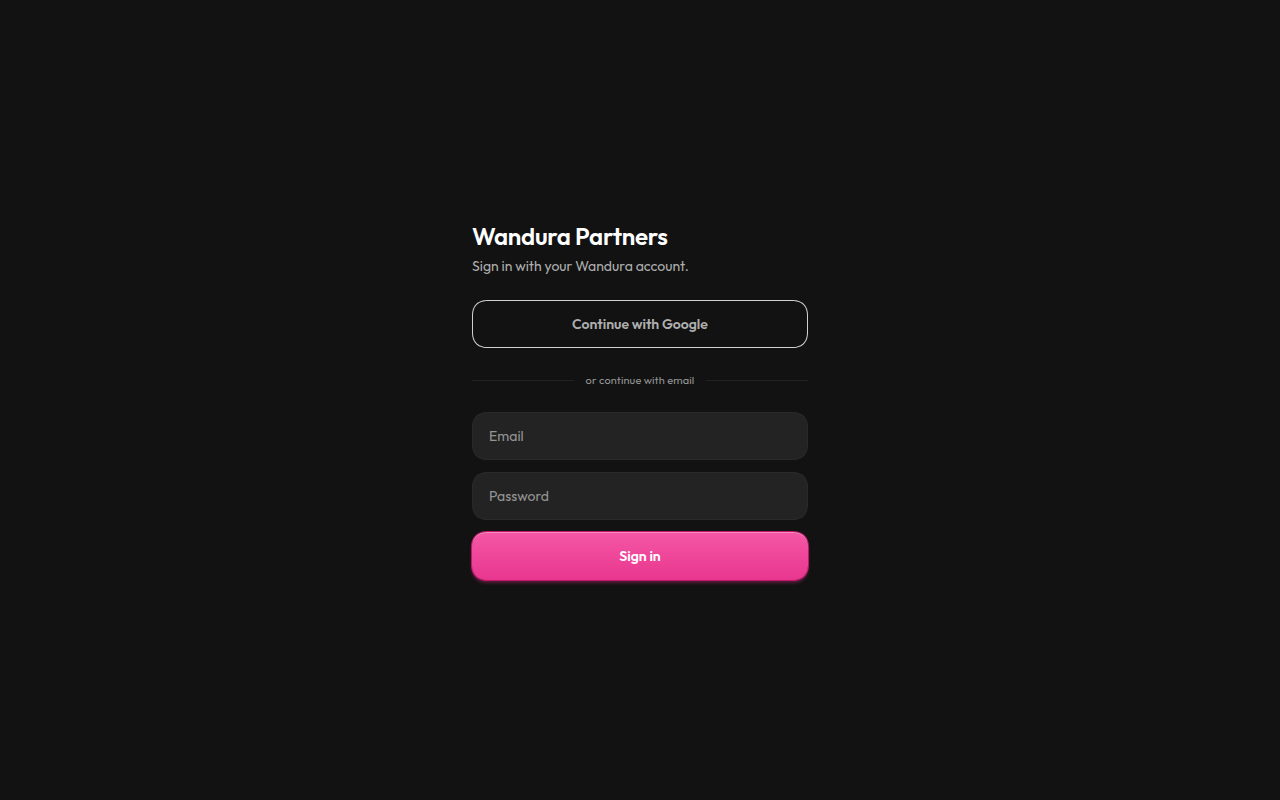
Sign in
- Open
https://partner.wandura.ai. - Choose one of the two options:
- Continue with Google, then pick the Google account with the address your organisation added.
- Enter your Email and Password, then press Sign in.
- The portal opens your starting screen: Home for admins and marketers, Films for partners, and Developers for developers.
Note: The portal has no sign-up or password-reset screen. If you do not know your password, use Continue with Google with the same address, or ask Wandura for help.
Accept an invitation
An admin of your organisation adds you by email address. What happens next depends on whether that address already has a Wandura account:
| Your situation | What happens |
|---|---|
| The address already has a Wandura account | You join straight away. No email is sent. Sign in and the organisation is there. |
| The address has no account yet | You receive an email titled "Organisation name invited you to Wandura Partners". Sign in with that exact address and you join the organisation. |
The email has a Sign in to Wandura Partners button that opens the portal. Signing in with the invited address is what accepts the invitation; signing in with a different address does not. Invitations expire after 14 days; if yours has expired, ask your admin to add you again.
Note: If you sign in before anyone has added you, the portal may open an empty workspace named after you. It has no films. Once your organisation adds you, it appears in the organisation switcher described below.
Switch organisation
One account can belong to more than one organisation, with a different role in each. Your current organisation, your role and your email address are shown on the card at the bottom of the sidebar.
If you belong to more than one organisation, that card is a button:
- Click the card at the bottom of the sidebar. A menu titled Organizations opens.
- Each entry shows the organisation name and your role there. A suspended organisation is marked as such.
- Click the organisation you want. The portal reloads and takes you to that organisation's starting screen.
The portal remembers your choice in this browser. Everything you see, including films, creatives and batches, always belongs to the organisation shown on the card. If you are removed from the organisation you had selected, the portal falls back to another organisation you still belong to.
Sign out
Press Sign out under the card at the bottom of the sidebar. This signs you out of the portal in this browser only; other devices where you are signed in stay signed in.
Troubleshooting
| Message | What it means | What to do |
|---|---|---|
| This account is not a partner member | You are signed in, but the account does not belong to any partner organisation. | Check you used the invited address. Otherwise ask your admin or Wandura to add it, then reload the page. |
| Sign-in finished but no session was created | The sign-in round trip did not complete. | Press Back to sign in and try again. If it keeps happening, ask in your team's Wandura Discord channel. |
| Your organization is suspended | Your organisation is on hold. | You can browse, but most actions are blocked. Ask in your team's Wandura Discord channel. |
Next steps
Updated 1 Oct 2026 · Change history (3)